This walkthrough shows when to use PutItem vs UpdateItem in .NET with real code, atomic increments, and conditional checks. We will build a minimal API that manages inventory counts with a composite key (storeId, sku), demonstrate full upserts with PutItem, partial updates with UpdateItem, handle conditional failures cleanly, and show everything via AWS Console and Visual Studio 2026.
If you want the fastest takeaway: use PutItem when you want to replace or upsert the whole item; use UpdateItem when you need partial updates, atomic counters, or conditional guards. The rest of this article shows exactly how to implement and test both in .NET 10.
If you want more DynamoDB patterns, check my earlier posts: CRUD with DynamoDB in ASP.NET Core, Batch operations with .NET, and DynamoDB Streams for change capture.
The full sample code for this article lives at github.com/iammukeshm/dynamodb-updateitem-vs-putitem-dotnet - clone it if you want to follow along or diff against your own changes.
This article is sponsored by AWS. Huge thanks for helping me produce more .NET on AWS content!
What is PutItem?
PutItem creates a new item or replaces the entire item if it already exists. It’s the right tool when you always send the full shape. By default it overwrites; add a ConditionExpression like attribute_not_exists(storeId) to make it create-only.
Pros: simple, idempotent upsert, aligns with full DTOs.
Cons: overwrites existing attributes unless you guard, writes the whole item (higher write cost for large payloads).
What is UpdateItem?
UpdateItem performs partial, in-place updates. It shines for atomic counters (SET Quantity = Quantity + :delta), single-attribute changes, and conditional guards (Quantity >= :min). It writes only the delta, so it’s cheaper when touching small fields.
Pros: atomic increments, conditional protection, smaller write size.
Cons: more syntax (expressions), you must think about defaults/initial values.
What we are building
- A DynamoDB table
Inventorywith composite key: partition keystoreId(string) and sort keysku(string). - A .NET 10 minimal API with endpoints for:
PUT /inventory/put→ full upsert (PutItem)PATCH /inventory/update→ partial update (UpdateItem) with atomic increment and optional conditional checksGET /inventory/{storeId}/{sku}→ read
- Friendly responses for conditional failures and throttling, plus retry hints.
- Everything tested locally against your AWS account (CLI already configured).
Why PutItem vs UpdateItem matters
- PutItem: full replace or create. Think “upsert the whole document.” If the item exists, you overwrite it (unless you add a condition). Good for initial inserts or when you always send the complete shape.
- UpdateItem: partial, in-place mutations. Great for atomic increments (
SET Quantity = Quantity + :delta), setting a single attribute, or guarding with conditions (Quantity >= :min). Cheaper on write size when you only change a few attributes.
For inventory, we care about atomic counts and conditional guards (no negative stock). That makes UpdateItem the right tool for quantity changes, and PutItem the right tool for first-time creation or full replacements.
Prerequisites
- AWS account; DynamoDB access.
- AWS CLI already configured with your profile (full access for this demo).
- .NET 10 SDK; Visual Studio 2026
- Region: assume
us-east-1. - Source code: github.com/iammukeshm/dynamodb-updateitem-vs-putitem-dotnet
Step 1: Create the DynamoDB table (console)
In AWS Console → DynamoDB → Create table:
- Table name:
Inventory - Partition key:
storeId(String) - Sort key:
sku(String) - Capacity: On-demand (simpler for demo)
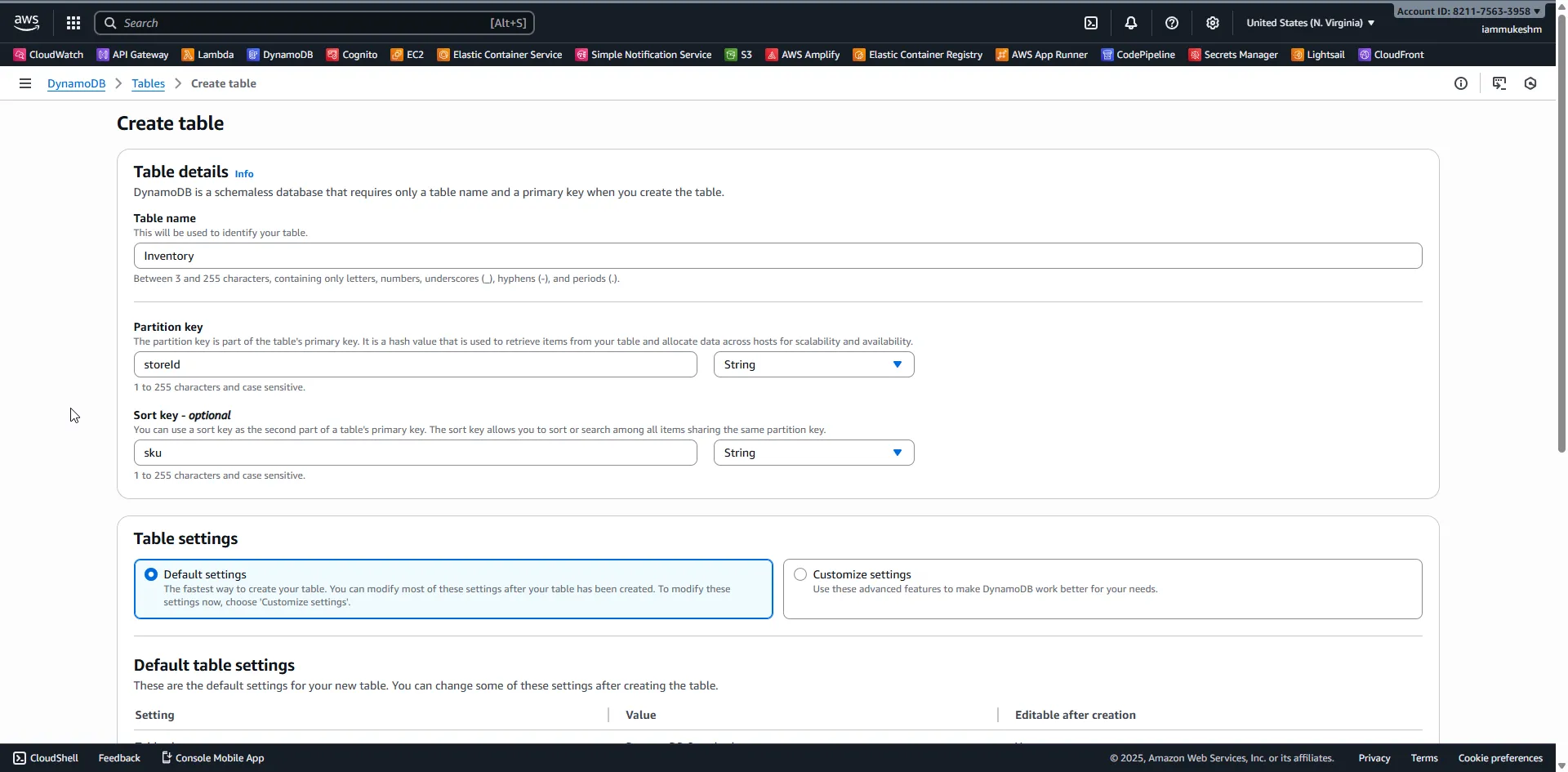
No GSIs needed for this demo. Create the table.
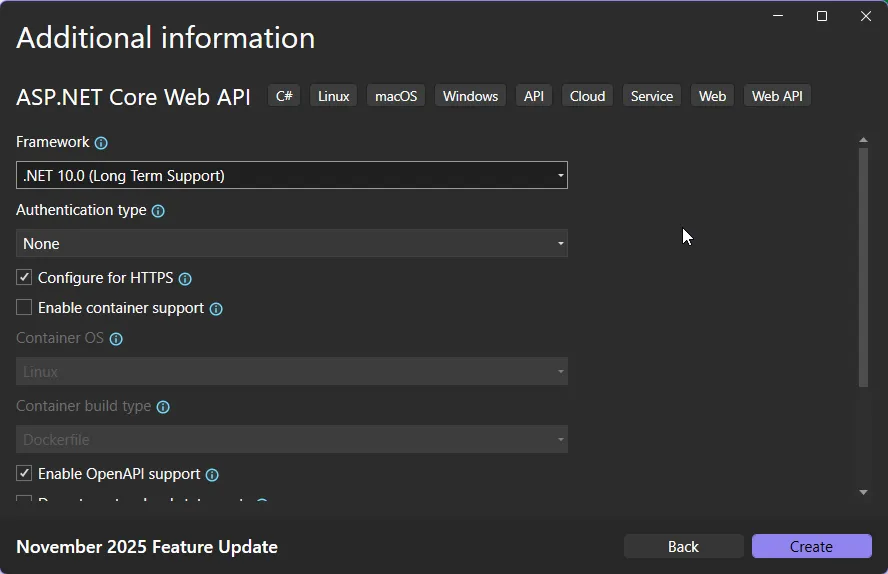
Step 2: Create the .NET 10 minimal API in Visual Studio 2026
- Open Visual Studio 2026 → Create a new project → “ASP.NET Core Web API”.
- Name it
InventoryApi; Framework: .NET 10; Authentication: None. - Create.
Step 3: Add DynamoDB packages
In Package Manager Console:
Install-Package AWSSDK.DynamoDBv2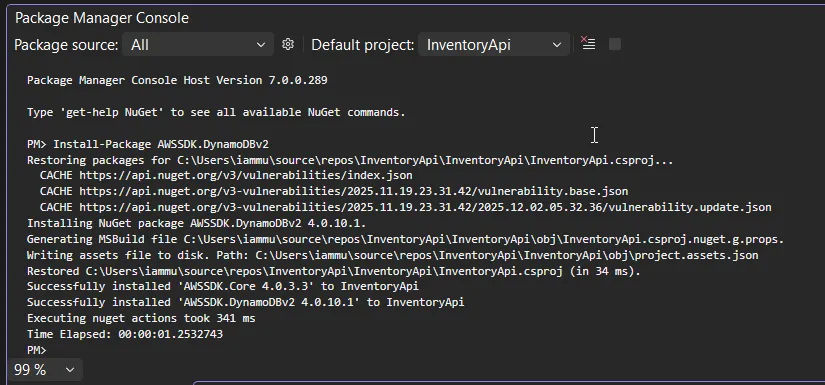
Step 4: Update appsettings.json
appsettings.json:
{ "AWS": { "Region": "us-east-1" }, "Inventory": { "TableName": "Inventory" }}We rely on your default AWS CLI credentials/profile; no keys in code.
Step 5: Define the model
Create a new class, InventoryItem.cs.
using Amazon.DynamoDBv2.DataModel;
namespace InventoryApi;
[DynamoDBTable("Inventory")]public class InventoryItem{    [DynamoDBHashKey("storeId")]    public string StoreId { get; set; } = default!;
    [DynamoDBRangeKey("sku")]    public string Sku { get; set; } = default!;
    [DynamoDBProperty("Name")]    public string Name { get; set; } = default!;
    [DynamoDBProperty("Quantity")]    public int Quantity { get; set; }
    [DynamoDBProperty("Price")]    public decimal Price { get; set; }}
DynamoDBContext needs the hash and range key attributes; without them you will see Must have one hash key defined for the table InventoryItem. We map to lower-case storeId and sku to match the low-level client calls used elsewhere in this article.
Step 6: Wire up Program.cs (minimal API)
This uses both AmazonDynamoDBClient (low-level) and IDynamoDBContext (object mapper).
Program.cs:
using Amazon;using Amazon.DynamoDBv2;using Amazon.DynamoDBv2.DataModel;using Amazon.DynamoDBv2.Model;using Microsoft.AspNetCore.Http.Json;
var builder = WebApplication.CreateBuilder(args);
builder.Services.Configure<JsonOptions>(options =>{    options.SerializerOptions.PropertyNamingPolicy = null;});
var awsRegion = builder.Configuration["AWS:Region"] ?? "us-east-1";var tableName = builder.Configuration["Inventory:TableName"] ?? "Inventory";
builder.Services.AddSingleton<IAmazonDynamoDB>(_ =>{    return new AmazonDynamoDBClient(RegionEndpoint.GetBySystemName(awsRegion));});
builder.Services.AddSingleton<IDynamoDBContext, DynamoDBContext>();
var app = builder.Build();
app.MapGet("/", () => Results.Ok("Inventory API is running"));
app.MapGet("/inventory/{storeId}/{sku}", async (    string storeId, string sku, IDynamoDBContext context) =>{    var item = await context.LoadAsync<InventoryItem>(storeId, sku);    return item is null        ? Results.NotFound(new { message = "Item not found" })        : Results.Ok(item);});
app.MapPut("/inventory/put", async (InventoryItem request, IAmazonDynamoDB ddb) =>{    var put = new PutItemRequest    {        TableName = tableName,        Item = new Dictionary<string, AttributeValue>        {            ["storeId"] = new AttributeValue(request.StoreId),            ["sku"] = new AttributeValue(request.Sku),            ["Name"] = new AttributeValue(request.Name),            ["Quantity"] = new AttributeValue { N = request.Quantity.ToString() },            ["Price"] = new AttributeValue { N = request.Price.ToString() }        },        // Uncomment to prevent overwriting existing items:        // ConditionExpression = "attribute_not_exists(storeId) AND attribute_not_exists(sku)"    };
    await ddb.PutItemAsync(put);    return Results.Ok(new { message = "Item upserted with PutItem", request.StoreId, request.Sku });});
app.MapPatch("/inventory/update", async (    string storeId,    string sku,    int delta,    bool requireNonNegative,    IAmazonDynamoDB ddb) =>{    var request = new UpdateItemRequest    {        TableName = tableName,        Key = new Dictionary<string, AttributeValue>        {            ["storeId"] = new AttributeValue(storeId),            ["sku"] = new AttributeValue(sku)        },        UpdateExpression = "SET Quantity = Quantity + :delta",        ExpressionAttributeValues = new Dictionary<string, AttributeValue>        {            [":delta"] = new AttributeValue { N = delta.ToString() },            [":required"] = new AttributeValue { N = "0" }        },        ReturnValues = "ALL_NEW"    };
    if (requireNonNegative && delta < 0)    {        request.ConditionExpression = "Quantity >= :required";        request.ExpressionAttributeValues[":required"] = new AttributeValue        {            N = Math.Abs(delta).ToString()        };    }
    try    {        var response = await ddb.UpdateItemAsync(request);        var newQuantity = int.Parse(response.Attributes["Quantity"].N);        return Results.Ok(new { message = "Quantity updated", storeId, sku, newQuantity });    }    catch (ConditionalCheckFailedException)    {        return Results.BadRequest(new { message = "Update rejected: would result in negative quantity." });    }});
app.MapGet("/inventory/check/{storeId}/{sku}", async (    string storeId, string sku, IAmazonDynamoDB ddb) =>{    var response = await ddb.GetItemAsync(new GetItemRequest    {        TableName = tableName,        Key = new Dictionary<string, AttributeValue>        {            ["storeId"] = new AttributeValue(storeId),            ["sku"] = new AttributeValue(sku)        }    });
    return response.Item.Count == 0        ? Results.NotFound(new { message = "Item not found" })        : Results.Ok(response.Item.ToDictionary(k => k.Key, v => v.Value));});
app.Run();
Code Walkthrough
GET /
Keeps a zero-dependency health probe. Returning a simple string means local testers and load balancers can confirm the API is running without touching DynamoDB.
GET /inventory/{storeId}/{sku}
Uses DynamoDBContext.LoadAsync to fetch by composite key and materialize InventoryItem. The mapper handles attribute casing for you. If DynamoDB returns null, we surface a 404 with a clear message; otherwise we return the typed payload. This endpoint is intentionally mapper-based because reads rarely need expression syntax.
PUT /inventory/put
Accepts the full InventoryItem JSON body and projects it into PutItemRequest with explicit attribute types (N for numbers). Calling PutItemAsync overwrites if the item exists, which makes it idempotent for full replacements. If you want create-only semantics, uncomment the ConditionExpression to enforce attribute_not_exists on both keys. This is the canonical upsert path: clients send the entire document, DynamoDB replaces it atomically.
PATCH /inventory/update
Takes query params storeId, sku, delta, and requireNonNegative. The UpdateExpression performs Quantity = Quantity + :delta inside DynamoDB - no read-modify-write race. When requireNonNegative=true and delta is negative, we add ConditionExpression = "Quantity >= :required" with :required = Math.Abs(delta) to block negative stock. A successful write returns ALL_NEW so callers see the new quantity. A ConditionalCheckFailedException becomes a friendly 400, which is the right contract for client-side retries or UI validation.
GET /inventory/check/{storeId}/{sku}
Reads with the low-level client and returns the raw attribute map. This is useful when you are debugging expression attribute names or casing, because you see exactly what DynamoDB stored. It still returns 404 when the item is absent.
Step 7: Run and test
In Visual Studio 2026, hit Run (or dotnet run). The API will start (for example, https://localhost:7252).
7.1 Put an item (PutItem)
In Postman: new request, method PUT, URL https://localhost:7252/inventory/put. Body = raw JSON:
{ "StoreId": "store-1", "Sku": "sku-100", "Name": "Widget", "Quantity": 10, "Price": 19.99}Expect 200 with:
{ "message": "Item upserted with PutItem", "storeId": "store-1", "sku": "sku-100"}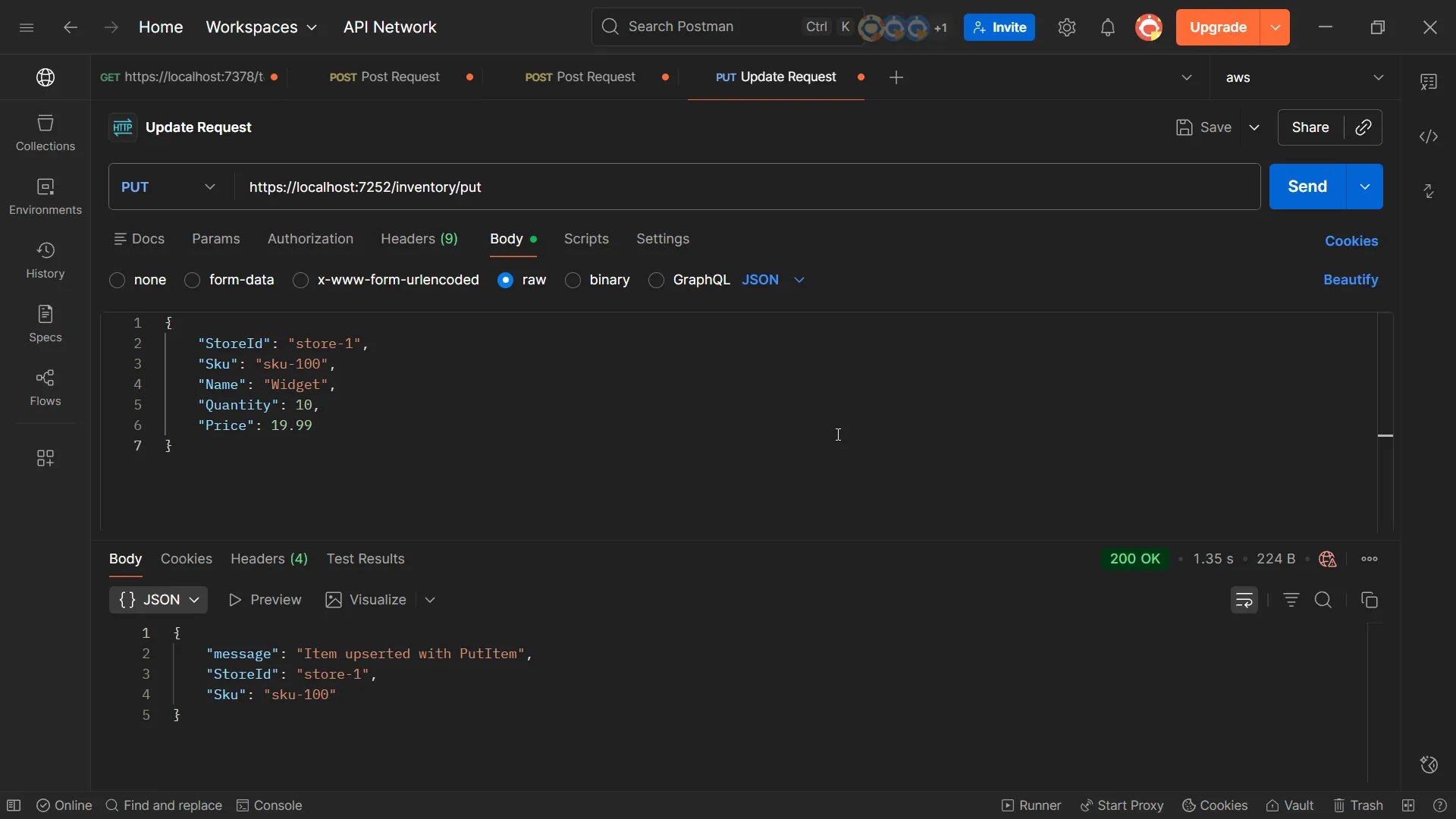
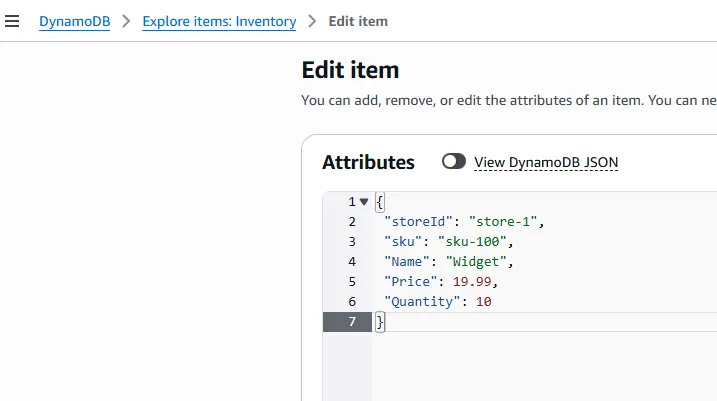
Check in DynamoDB console: you should see the item with Quantity 10.
7.2 Update quantity (UpdateItem, atomic)
In Postman: method PATCH, URL https://localhost:7252/inventory/update?storeId=store-1&sku=sku-100&delta=-3&requireNonNegative=true. No body.
Expect 200:
{ "message": "Quantity updated", "storeId": "store-1", "sku": "sku-100", "newQuantity": 7}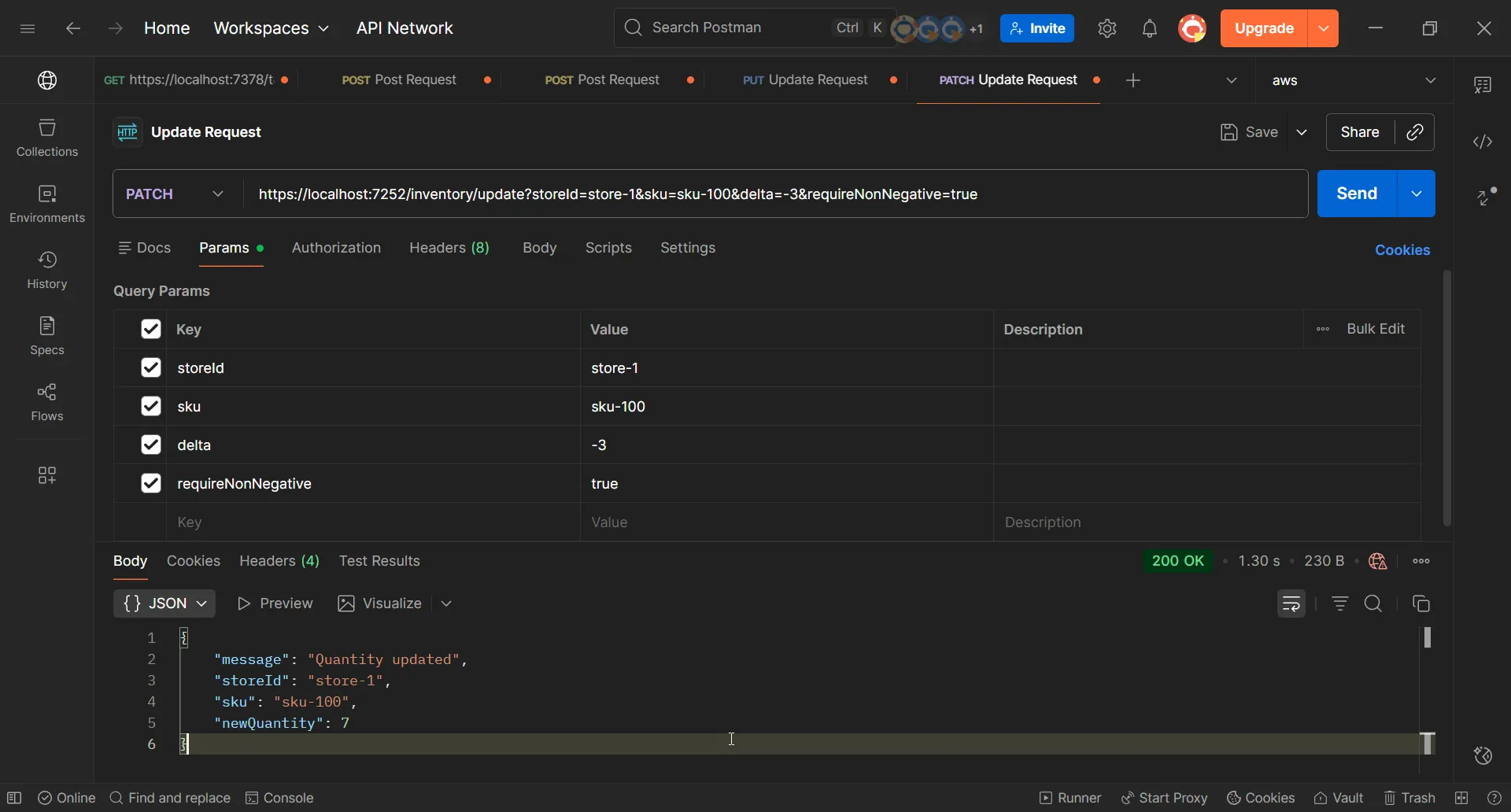
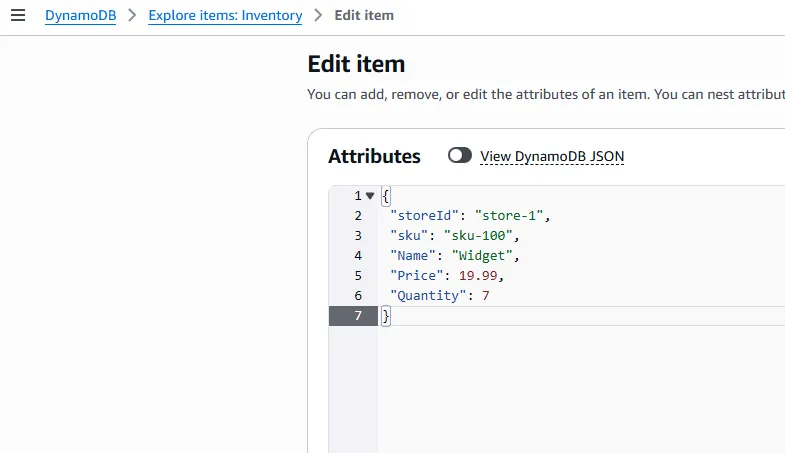
And the DynamoDB console shows Quantity 7.
7.3 Trigger a conditional failure
In Postman: method PATCH, URL https://localhost:7252/inventory/update?storeId=store-1&sku=sku-100&delta=-10&requireNonNegative=true. Expect 400:
{ "message": "Update rejected: would result in negative quantity."}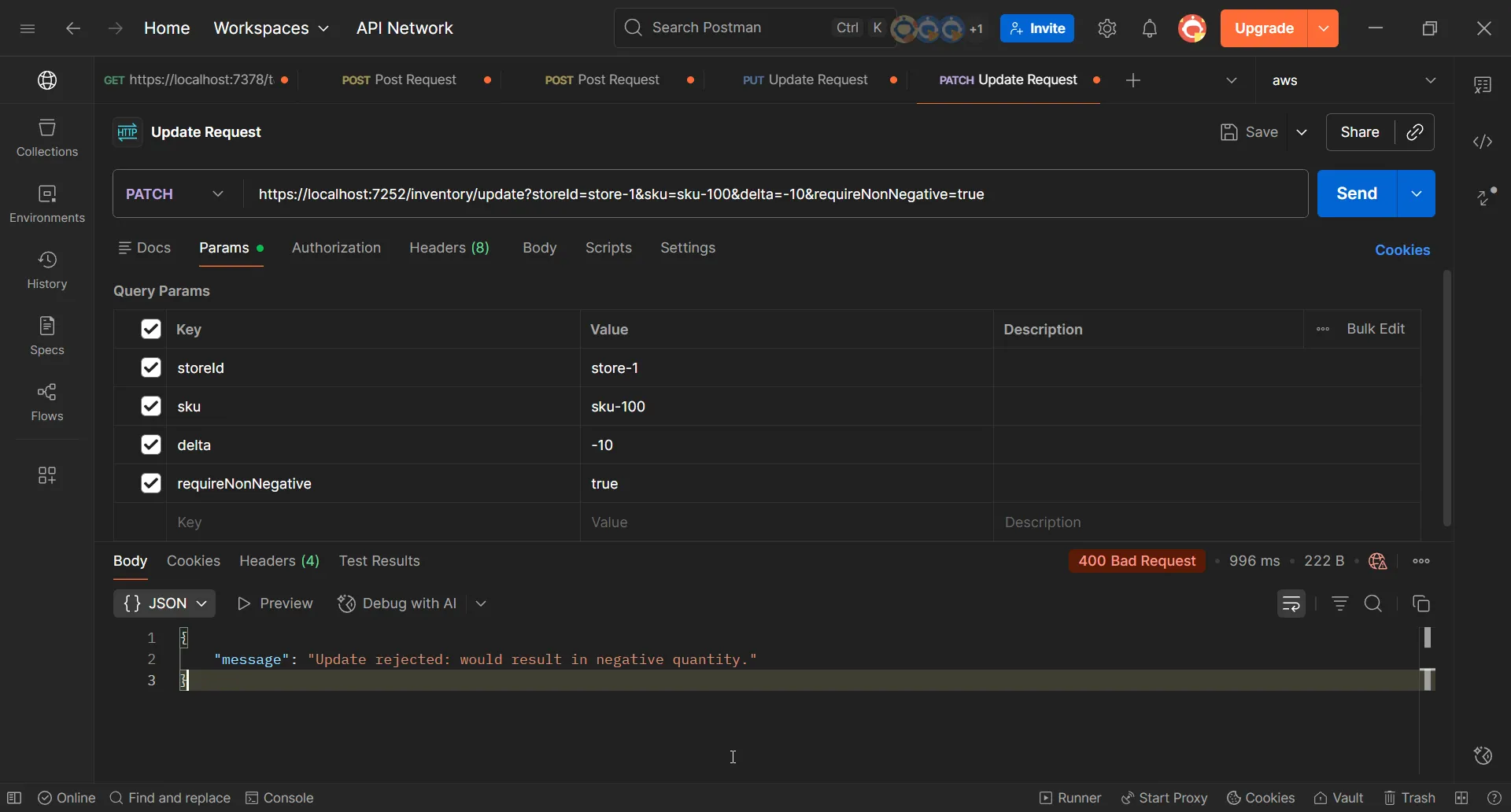
This wraps ConditionalCheckFailedException into a friendly 400.
7.4 Read the item
In Postman: method GET, URL https://localhost:7252/inventory/store-1/sku-100. Expect 200:
{ "StoreId": "store-1", "Sku": "sku-100", "Name": "Widget", "Quantity": 7, "Price": 19.99}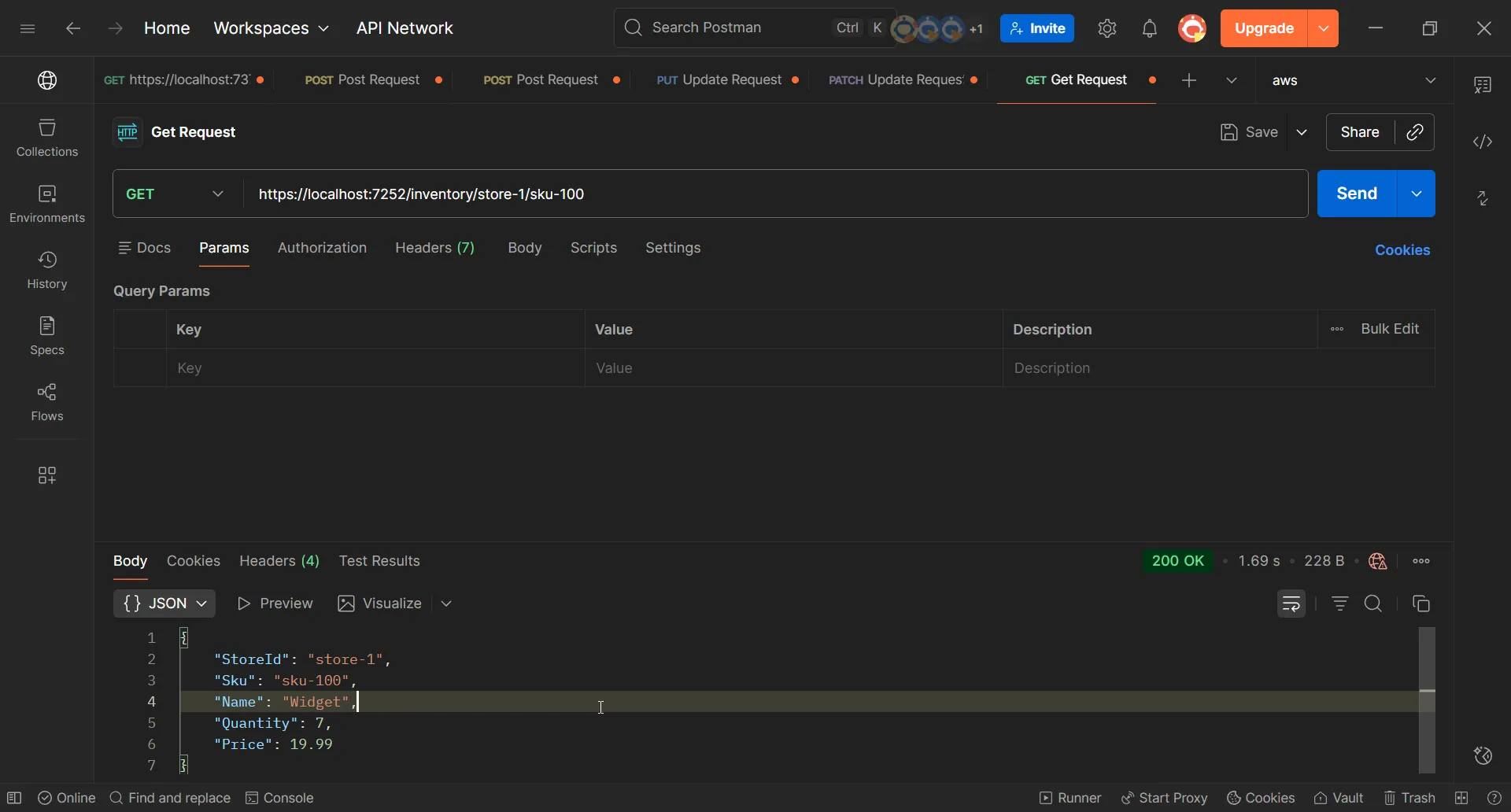
When to choose PutItem vs UpdateItem (cheat sheet)
- Use PutItem when you are creating the item or fully replacing it, and you are fine overwriting existing attributes (or you add a condition to prevent overwrite).
- Use UpdateItem when you need partial updates, atomic counters, or conditions to prevent bad states (like negative stock), and when you want to minimize write size.
Cost and performance notes
PutItemwrites the full item; write cost scales with item size (WCU). Overwriting large blobs is pricier.UpdateItemwrites only the delta; cheaper when you change a single number or attribute.- Avoid hot partitions: spread
storeIdto prevent one PK from absorbing all writes. - Keep items lean; large attributes inflate every PutItem call. DynamoDB item size limit is 400 KB.
- For idempotent retries on PutItem, include a condition or version attribute so duplicates don’t regress state.
Avoid lost updates with optimistic concurrency
When multiple writers touch the same item, guard with a version attribute and ConditionExpression. We add Version to the model, initialize it on insert, and enforce it on updates.
Add Version to InventoryItem.cs so consumers can see it:
using Amazon.DynamoDBv2.DataModel;
[DynamoDBTable("Inventory")]public class InventoryItem{    [DynamoDBHashKey("storeId")]    public string StoreId { get; set; } = default!;
    [DynamoDBRangeKey("sku")]    public string Sku { get; set; } = default!;    public string Name { get; set; } = default!;    public int Quantity { get; set; }    public decimal Price { get; set; }    public int Version { get; set; } = 1;}
Insert with PutItem while setting Version = 1 and blocking overwrites:
var put = new PutItemRequest{ TableName = tableName, Item = new() { ["storeId"] = new AttributeValue(request.StoreId), ["sku"] = new AttributeValue(request.Sku), ["Name"] = new AttributeValue(request.Name), ["Quantity"] = new AttributeValue { N = request.Quantity.ToString() }, ["Price"] = new AttributeValue { N = request.Price.ToString() }, ["Version"] = new AttributeValue { N = "1" } }, ConditionExpression = "attribute_not_exists(storeId) AND attribute_not_exists(sku)"};Update with a version check so concurrent writers do not clobber each other:
var request = new UpdateItemRequest{ TableName = tableName, Key = new() { ["storeId"] = new AttributeValue(storeId), ["sku"] = new AttributeValue(sku) }, UpdateExpression = "SET Quantity = Quantity + :delta, Version = :nextVersion", ConditionExpression = "Version = :expected", ExpressionAttributeValues = new() { [":delta"] = new AttributeValue { N = delta.ToString() }, [":expected"] = new AttributeValue { N = expectedVersion.ToString() }, [":nextVersion"] = new AttributeValue { N = (expectedVersion + 1).ToString() } }, ReturnValues = "ALL_NEW"};If another writer updates first, DynamoDB throws ConditionalCheckFailedException and your API can return 409/400 with a retry hint. This is the safest pattern when you expose quantity changes to multiple concurrent callers.
Low-level client vs DynamoDBContext
We used the low-level AmazonDynamoDBClient to show full control over expressions. You can layer DynamoDBContext when you want object mapping:
public class InventoryRepository{    private readonly IDynamoDBContext _context;
    public InventoryRepository(IDynamoDBContext context)    {        _context = context;    }
    public Task SaveAsync(InventoryItem item, CancellationToken ct = default)        => _context.SaveAsync(item, ct);
    public Task<InventoryItem?> LoadAsync(string storeId, string sku, CancellationToken ct = default)        => _context.LoadAsync<InventoryItem>(storeId, sku, ct);}
SaveAsync hides expressions and conditionals, which is convenient but harder to use for partial updates. In practice, most teams mix both: DynamoDBContext for simple load/save of full documents, and the low-level client for conditional or atomic updates where you need precise control.
IAM and security
Use least privilege. For this demo, you can start with table-scoped permissions:
{ "Version": "2012-10-17", "Statement": [ { "Effect": "Allow", "Action": [ "dynamodb:PutItem", "dynamodb:UpdateItem", "dynamodb:GetItem" ], "Resource": "arn:aws:dynamodb:us-east-1:YOUR_ACCOUNT_ID:table/Inventory" } ]}Tighten resources and actions in production; avoid wildcards.
Wrap-up
You now have a working minimal API that demonstrates exactly when to use PutItem vs UpdateItem in DynamoDB from .NET 10. PutItem handles full upserts; UpdateItem handles partial, atomic, and conditional changes. With this pattern, you can:
- Seed inventory with
PutItem. - Adjust counts atomically with
UpdateItem. - Guard against negative stock with conditions.
- Return clear messages for callers.
Happy coding with DynamoDB and .NET! If you want the finished project, grab it here: github.com/iammukeshm/dynamodb-updateitem-vs-putitem-dotnet. Star the repo and adapt it to your environment.